
Last Updated: December 30, 2025
Locator now includes Service Areas — a way to define, visualize, and automate based on geographic boundaries. Whether you’re mapping sales territories, delivery zones, or marketing regions, Service Areas help you see exactly where your operations live on the map.
What Service Areas are for
Service Areas let you overlay boundaries on your Locator map so you can:
- Understand coverage: See which zip codes, cities, or custom regions your routes actually serve.
- Plan marketing: Identify which areas you’re targeting (or missing) at a glance.
- Segment operations: Group items by territory so the right team handles the right region.
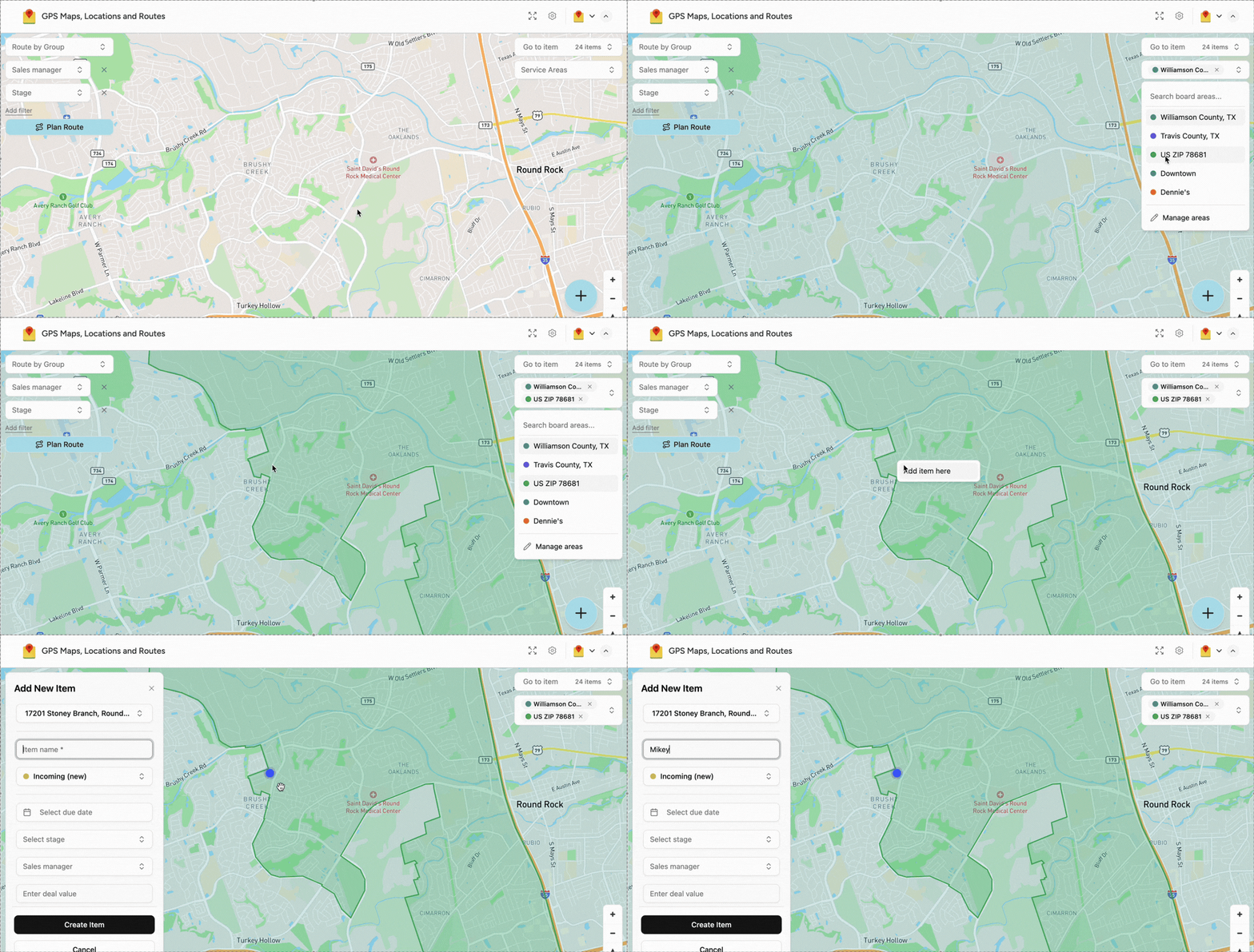
Examples of boundaries you might use:
- Zip codes — useful for delivery routing, direct mail campaigns, or territory assignments.
- City / town limits — helpful when coverage or pricing differs by municipality.
- Custom regions — draw your own shapes for sales territories, franchise areas, or service zones.
How to access Service Areas
- Open your Locator map view.
- On the right side of the map control window, locate the Service Areas dropdown.
- Click Manage Service Areas.
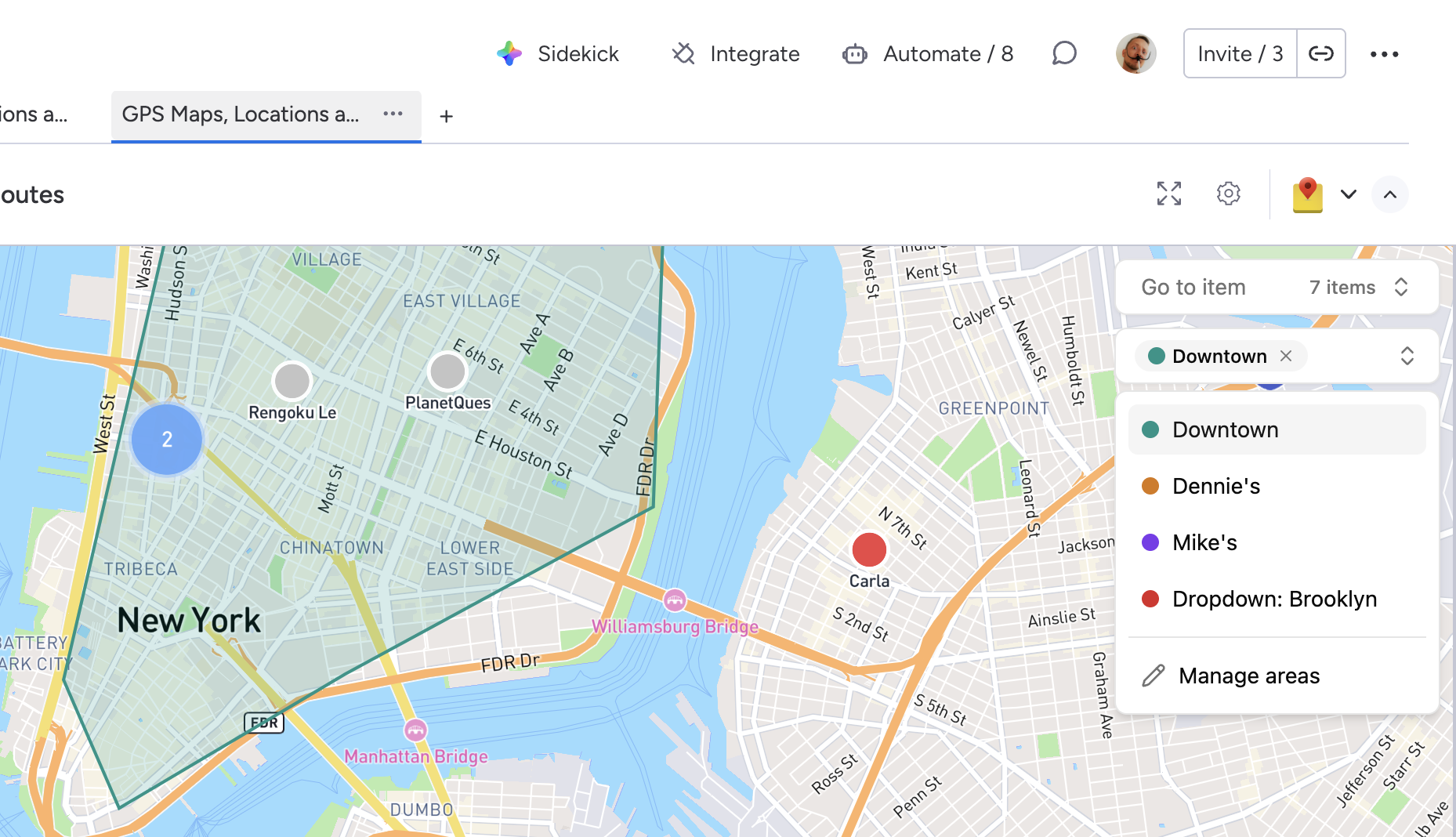
From there you can:
- Add a new Service Area — draw or define a custom boundary.
- Select from the library — choose a pre-built boundary set.
The Service Areas library
The library currently includes:
- US zip codes
- US city boundaries
Need something else? We can extend the library with additional datasets — counties, states, census tracts, or boundaries for other countries. Just tell us what you need via the contact form below, and point us to the data source (Census Bureau, government open-data portal, etc.) if you have one. We’ll take care of the rest.
Using Service Areas in automations
Service Areas aren’t just visual — you can trigger automations based on them.
How to set it up
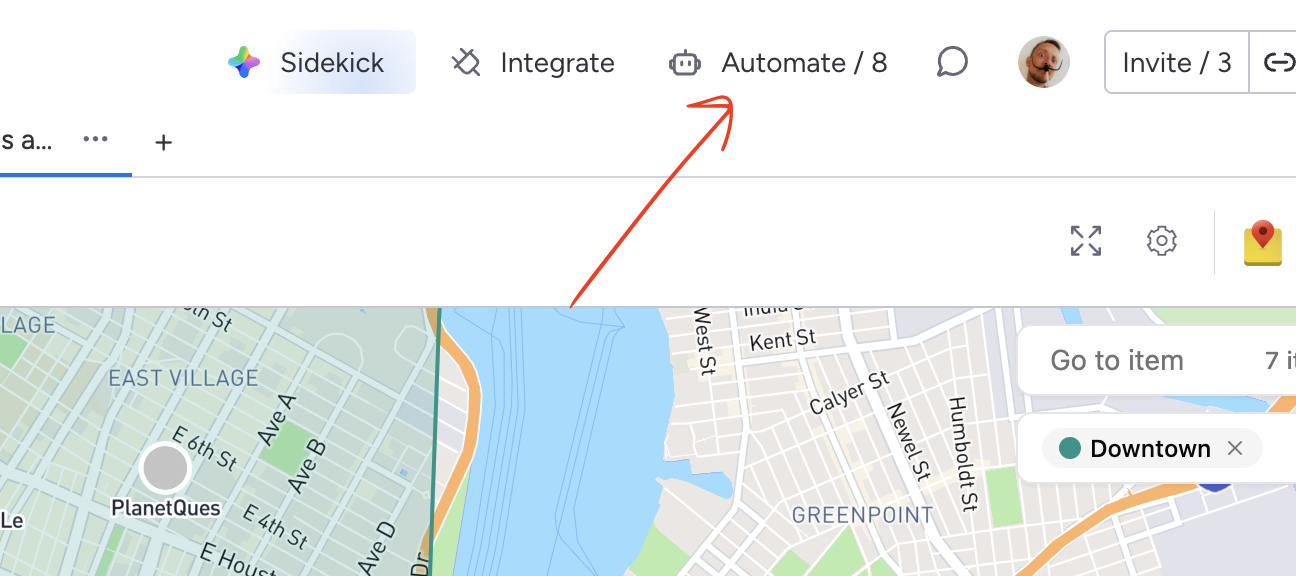
- Go to the Automation Center in monday.com — click the Automate button at the top of your board.
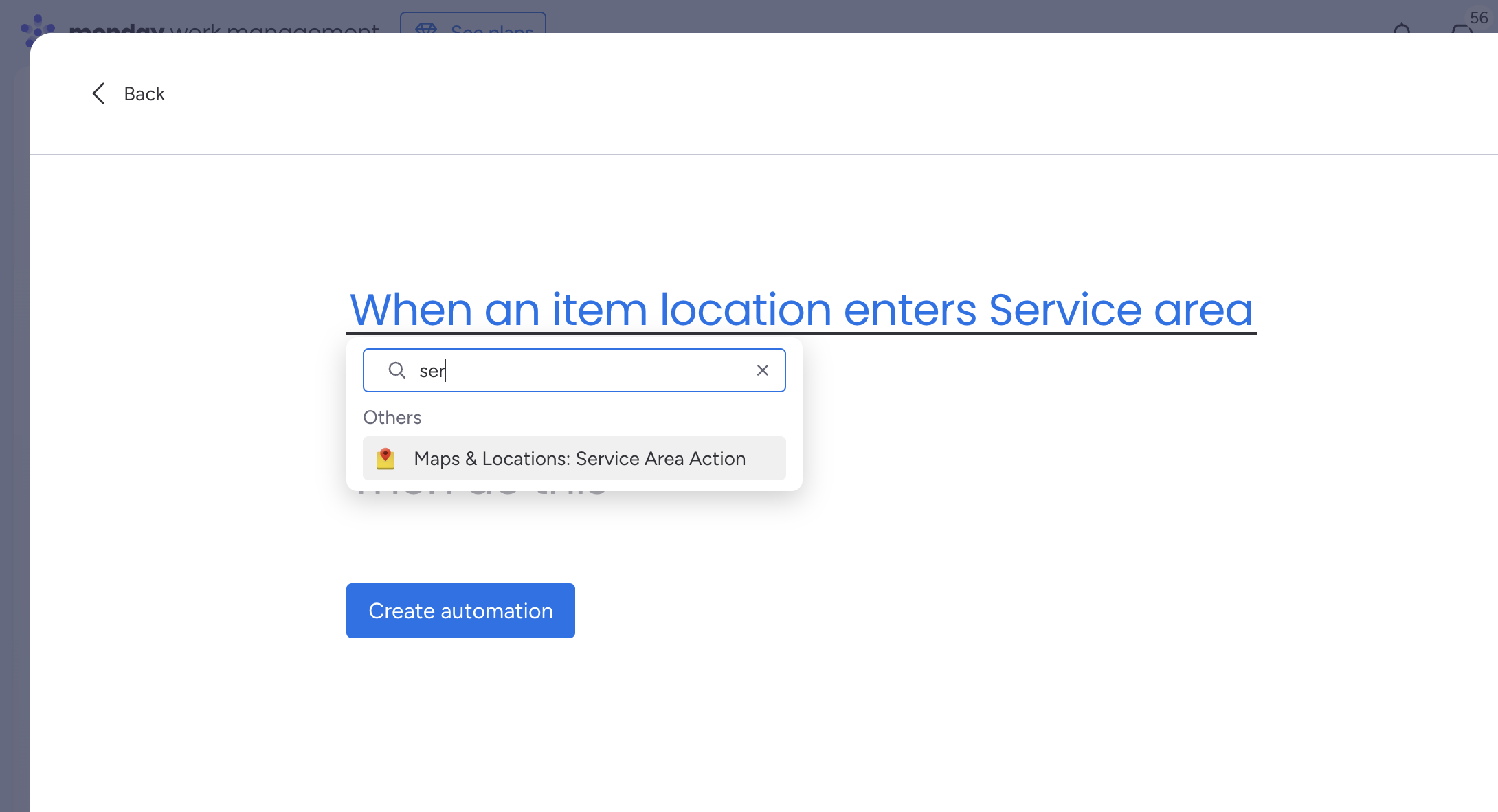
- Create a new automation and choose Service Area as the trigger.
- Define the condition (e.g., “When an item’s location falls inside Service Area X…”).
- Pick an action to execute.
Example automations
- Auto-assign by territory: “When item location is in Northeast Zone, assign to NE Sales Team.”
- Status update: “When item location is in Downtown Delivery Area, set Status to Local Route.”
- Notify a team: “When item location is in Priority Market, send a notification to Marketing.”
- Move to group: “When item location is in Franchise Region A, move item to Franchise A group.”
This keeps your board organized automatically — no manual territory checks required.
Need a specific dataset?
If you have census data, government shapefiles, or any other geographic dataset you’d like us to add to the library, use the contact form below. Include a link to the data source and we’ll integrate it for you.
Use form below to contact us with any requests 👇
Have a question or want to
work together?
We'd love to hear from you. Drop us a line and we'll get back to you shortly.